

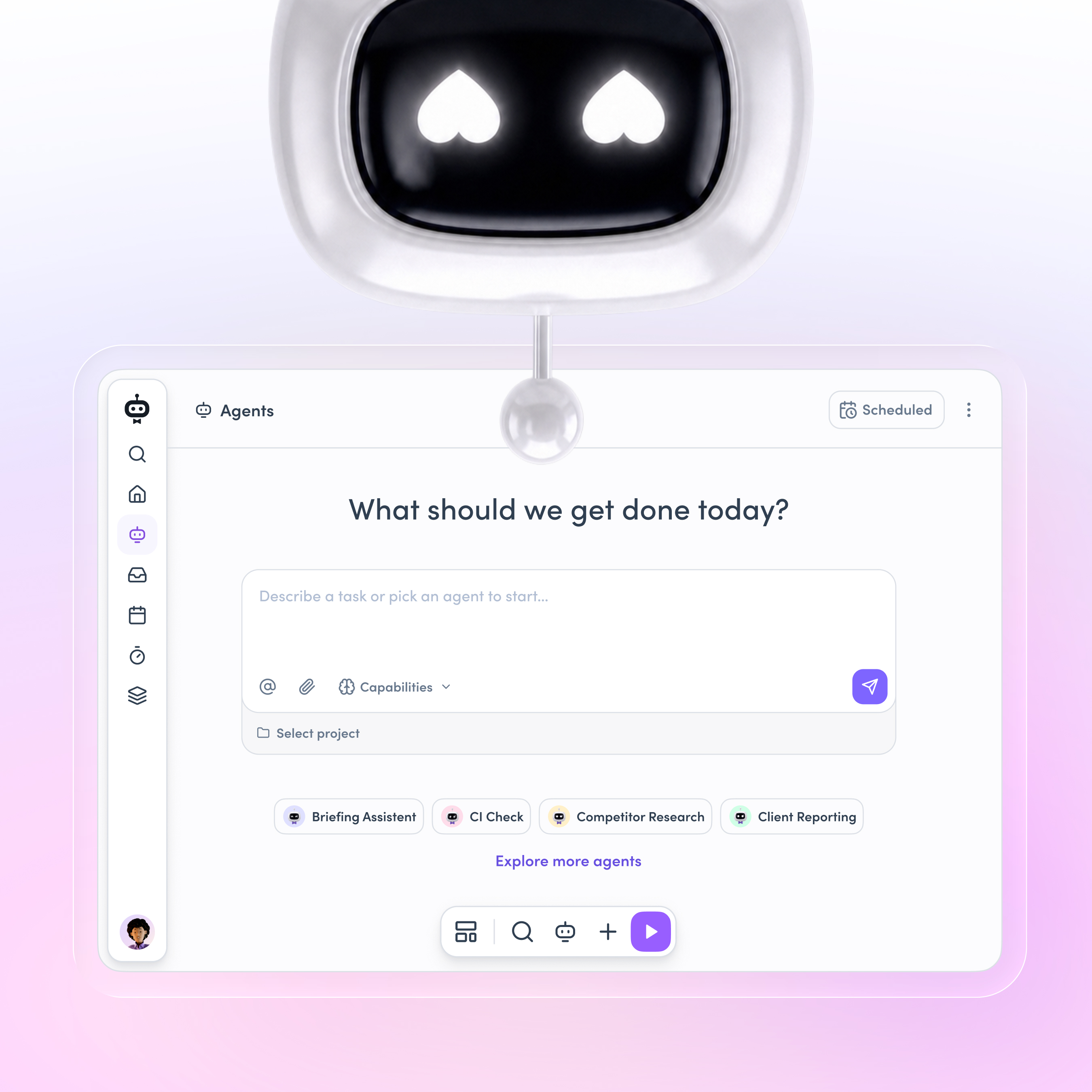
Agents are AI teammates in awork. They can answer questions, prepare reports, and work on tasks and projects using the context of your workspace. Every user has a personal agent (the awork Agent), and workspaces can create custom agents with their own prompt, model configuration, capabilities, and connectors.
Core Concepts
- Agents are reusable configurations: a name, a system prompt, a model (or workspace preset), and a set of capabilities such as awork access, web search, or image generation. Changes to the system prompt are versioned and can be restored.
- Threads are conversations with the awork Agent (
personal-agent) or a custom agent (custom-agent). A thread can optionally be linked to a project, task, client, or document to give the agent context. - Messages are submitted into a thread as text, attachments, or both. A thread processes one message at a time — if the agent is still working, new messages are queued and processed in order.
- Connectors link agents to external tools and data sources, and can be shared across the workspace.
How to work with Agents
Creating an agent
To create a custom agent, provide a name and a model selection: either a workspace model preset (presetKey) or both modelProvider and modelName — but not both options at once. Typically you also set a systemPrompt that defines the agent’s job:
curl -X POST 'https://api.awork.com/api/v1/agents' \
  -H 'Authorization: Bearer {token}' \
  -H 'Content-Type: application/json' \
  -d '{
    "name": "Client Status Reporter",
    "description": "Prepares client-ready project status reports.",
    "systemPrompt": "Prepare concise client-ready project updates from awork data.",
    "presetKey": "balanced",
    "aworkAccessEnabled": true,
    "webSearchEnabled": true
  }'
The response contains the new agent, including its id, which you need to start threads for it:
{
  "id": "23e68187-91d6-4f7e-8d31-e3f2c60d7427",
  "type": "custom",
  "name": "Client Status Reporter",
  "description": "Prepares client-ready project status reports.",
  "systemPrompt": "Prepare concise client-ready project updates from awork data.",
  "presetKey": "balanced",
  "createdOn": "2026-08-29T08:00:00Z",
  "createdBy": "9ad63972-4396-4b0b-9e7d-40b852cdebf8"
}
To see the available models before creating an agent, use GET /agents/models.
Getting default agent options
Use GET /agents/defaults to retrieve the effective model, tool-access, connector, and skill options for a conversation. The type query parameter is required. In the awork UI, personal-agent is the awork Agent — the built-in personal agent available to the requesting user — while custom-agent refers to a custom agent configuration.
For the awork Agent, pass personal-agent and omit agentId:
curl 'https://api.awork.com/api/v1/agents/defaults?type=personal-agent' \
  -H 'Authorization: Bearer {token}'
For a custom agent, pass both custom-agent and that agent’s id:
curl 'https://api.awork.com/api/v1/agents/defaults?type=custom-agent&agentId=23e68187-91d6-4f7e-8d31-e3f2c60d7427' \
  -H 'Authorization: Bearer {token}'
agentId is required only when type=custom-agent; it is not used for personal-agent. If type is omitted or has any other value, the endpoint returns 400 Bad Request with a validation error on type. Generated clients also expose type as a required, non-null argument.
Copying an agent
To duplicate an existing agent, use the dedicated copy endpoint. The source agent supplies the configuration and system prompt; you provide the new name and an optional description:
curl -X POST 'https://api.awork.com/api/v1/agents/23e68187-91d6-4f7e-8d31-e3f2c60d7427/copy' \
  -H 'Authorization: Bearer {token}' \
  -H 'Content-Type: application/json' \
  -d '{
    "name": "Client Status Reporter (Marketing)",
    "description": "Status reports tailored to marketing projects."
  }'
The response is the new agent with its own id. You need read access to the source agent.
Updating an agent and prompt history
Update an agent’s configuration with PUT /agents/{agentId}. System prompt changes are recorded as versions:
GET /agents/{agentId}/systempromptversionslists the saved prompt versions.POST /agents/{agentId}/systempromptversions/{systemPromptVersionId}/restorerestores a previous version.
Agents can be archived and unarchived with POST /agents/{agentId}/setarchived.
Starting a thread for an agent
A thread is a conversation with one agent. The type field is required: use custom-agent together with an agentId, or personal-agent for the awork Agent (no agentId needed). Supply content (or attachments) to submit the first message right away — custom agent threads require a first message, while awork Agent threads can be created without one:
curl -X POST 'https://api.awork.com/api/v1/agents/threads' \
  -H 'Authorization: Bearer {token}' \
  -H 'Content-Type: application/json' \
  -d '{
    "type": "custom-agent",
    "agentId": "23e68187-91d6-4f7e-8d31-e3f2c60d7427",
    "title": "Weekly client status report",
    "projectId": "c907b29e-f640-4639-910d-722623fd5b4a",
    "content": "Summarize this project'\''s progress, risks, and next steps."
  }'
The optional projectId, taskId, clientId, and documentId fields link the thread to an awork entity. The agent uses the linked entity as context for the whole conversation — for example, with a projectId set and awork access enabled, the agent can read the project’s tasks and statuses to answer the question above; with a documentId set, it can read that doc’s content.
{
  "id": "6cbb219e-839d-4d23-b273-3a78bbd842ae",
  "threadRunId": "8f934a03-8f8b-44ea-9137-3ca563bb75e8",
  "acceptedMessageId": "66fcbdc5-2ae6-43bd-b3ab-f18ccd24909a",
  "type": "custom-agent",
  "title": "Weekly client status report",
  "status": "accepted",
  "agentId": "23e68187-91d6-4f7e-8d31-e3f2c60d7427",
  "projectId": "c907b29e-f640-4639-910d-722623fd5b4a",
  "createdOn": "2026-08-29T08:00:00Z"
}
Keep the acceptedMessageId — you use it to check the message’s processing status.
Sending messages to a thread
Submit follow-up messages to an existing thread with text, attachments, or both. You can also override the model, reasoning level, tool access, connectors, and skills per message:
curl -X POST 'https://api.awork.com/api/v1/agents/threads/6cbb219e-839d-4d23-b273-3a78bbd842ae/messages' \
  -H 'Authorization: Bearer {token}' \
  -H 'Content-Type: application/json' \
  -d '{
    "content": "Add the latest budget and launch-date risks to the report."
  }'
A thread processes one message at a time. The response confirms acceptance — it does not contain the agent’s reply — and tells you whether the message started immediately or was queued:
{
  "threadId": "6cbb219e-839d-4d23-b273-3a78bbd842ae",
  "threadRunId": "8f934a03-8f8b-44ea-9137-3ca563bb75e8",
  "acceptedMessageId": "66fcbdc5-2ae6-43bd-b3ab-f18ccd24909a",
  "isQueued": false,
  "status": "accepted"
}
Adding context to a message
There are two ways to give a specific message additional context:
Referencing awork entities inline. Mention a doc, task, or project anywhere in the message content using entity-mention markup — the same format the awork editor produces. The agent resolves the reference with its awork tools and reads the entity’s content:
curl -X POST 'https://api.awork.com/api/v1/agents/threads/6cbb219e-839d-4d23-b273-3a78bbd842ae/messages' \
  -H 'Authorization: Bearer {token}' \
  -H 'Content-Type: application/json' \
  -d '{
    "content": "<p>Use the notes in <span class=\"entity-mention\" data-id=\"5a442338-8da3-49e9-a702-b45d6f829d43\" data-type=\"document\"></span> for the report.</p>"
  }'
Supported data-type values include document, task, and project; data-id is the entity’s id. The agent needs awork access enabled to resolve the reference.
Attaching files. The attachments array accepts up to 20 files per message. Reference either an existing awork file the caller can read (aworkFileId) or a freshly uploaded temporary file (temporaryFileId, see Files & Images) — exactly one of the two per attachment:
curl -X POST 'https://api.awork.com/api/v1/agents/threads/6cbb219e-839d-4d23-b273-3a78bbd842ae/messages' \
  -H 'Authorization: Bearer {token}' \
  -H 'Content-Type: application/json' \
  -d '{
    "content": "Summarize the attached briefing.",
    "attachments": [
      { "aworkFileId": "7a5c994a-320a-4850-a7a8-dad86809d3ef" }
    ]
  }'
Both patterns also work for the first message when creating a thread. To pin an entity as context for the whole conversation instead of a single message, use the thread-level projectId, taskId, clientId, or documentId fields when starting the thread.
Checking the processing status
Poll the status of a submitted message using the server-assigned acceptedMessageId. The id stays the same while the message is queued and when it starts executing:
curl 'https://api.awork.com/api/v1/agents/threads/6cbb219e-839d-4d23-b273-3a78bbd842ae/messages/66fcbdc5-2ae6-43bd-b3ab-f18ccd24909a/status' \
  -H 'Authorization: Bearer {token}'
{
"messageId": "66fcbdc5-2ae6-43bd-b3ab-f18ccd24909a",
"status": "completed",
"hasAgentResponse": true,
"responseId": "msg_01K4CLIENTSTATUS"
}Once completed, fetch the full conversation — including the agent’s replies — with GET /agents/threads/{threadId}/messages.
Cancelling a run
If an agent is taking too long or is working on the wrong thing, cancel the active run. A successful cancellation also pauses dispatch of the next queued message, and the response returns the thread:
curl -X POST 'https://api.awork.com/api/v1/agents/threads/6cbb219e-839d-4d23-b273-3a78bbd842ae/cancel' \
  -H 'Authorization: Bearer {token}'
Files
Agents and threads can both work with files:
- Agent files are knowledge attached to an agent’s configuration: upload via
POST /agents/{agentId}/files/byuploadid(see Files & Images for the upload flow), list withGET /agents/{agentId}/files, and delete withDELETE /agents/{agentId}/files/{fileId}. - Thread files are files produced in or attached to a conversation: retrieve them with
GET /agents/threads/{threadId}/files/{fileId}and download their content via the/downloadsub-route.
Connectors
Connectors give agents access to external tools and data. List the connectors available in your workspace with GET /agents/connectors and the predefined presets with GET /agents/connectors/presets, then link one to an agent:
curl -X POST 'https://api.awork.com/api/v1/agents/23e68187-91d6-4f7e-8d31-e3f2c60d7427/connectors/6a1cf273-34a5-4dcd-90d6-6ba7728d488e' \
  -H 'Authorization: Bearer {token}'
Unlink a connector with the corresponding DELETE request. Custom connectors can be made workspace-visible or private via PUT /agents/connectors/{connectorId}/sharing.